' href='data:image/webp;base64,UklGRkABAABXRUJQVlA4IDQBAADQBwCdASogACAAPrFMn0mnJKMhMBgMAOAWCWwAnTKEdXD4bCQASySOVR4RXCAZna3SMoJ8hefmX6dVmaZO8k73nwmt//C2AAD+/OzxhCdKvhd/yRsmu/9XlcS/Z7IF0SncHpxbLKEOPVD/gUH9Bz1Qoh2BaT+BY+H/vjPx7IfrtPl4nXPJemwZla37E2Y/UdO93N61/ka0g7L5F+HdfJ91NRPGMHkl2n6R/VkN+7fnGdat2L6d2k1CpIXr+jwJQLvAPo04kn8IeN2gJi8/kQvDZYGmYanD0zhvAtRwOSMVAmNKr3h/hYAZdJK+M0eWv588BCVrIXcofeJxJ32DFrBAmdDje6ID6MzwzZWJ8PpriVAB+l5U8nnC51aParOavRSY3CC79JiPUdA+H8bhHQUh03lAAA=='/%3E%3C/svg%3E)

Tips and Tricks: Multiselect
Combine several filters from one group for a more personal and natural result.
Table of Contents
FaceApp filters are organized into groups. By default, you can select only one filter within each group. Multiselect switches the selection mode, allowing you to combine several filters from the same group.
This helps create more individual results and gives you more control over the final look.
What Multiselect does
Without Multiselect, selecting a new filter within the same group replaces the previous one.
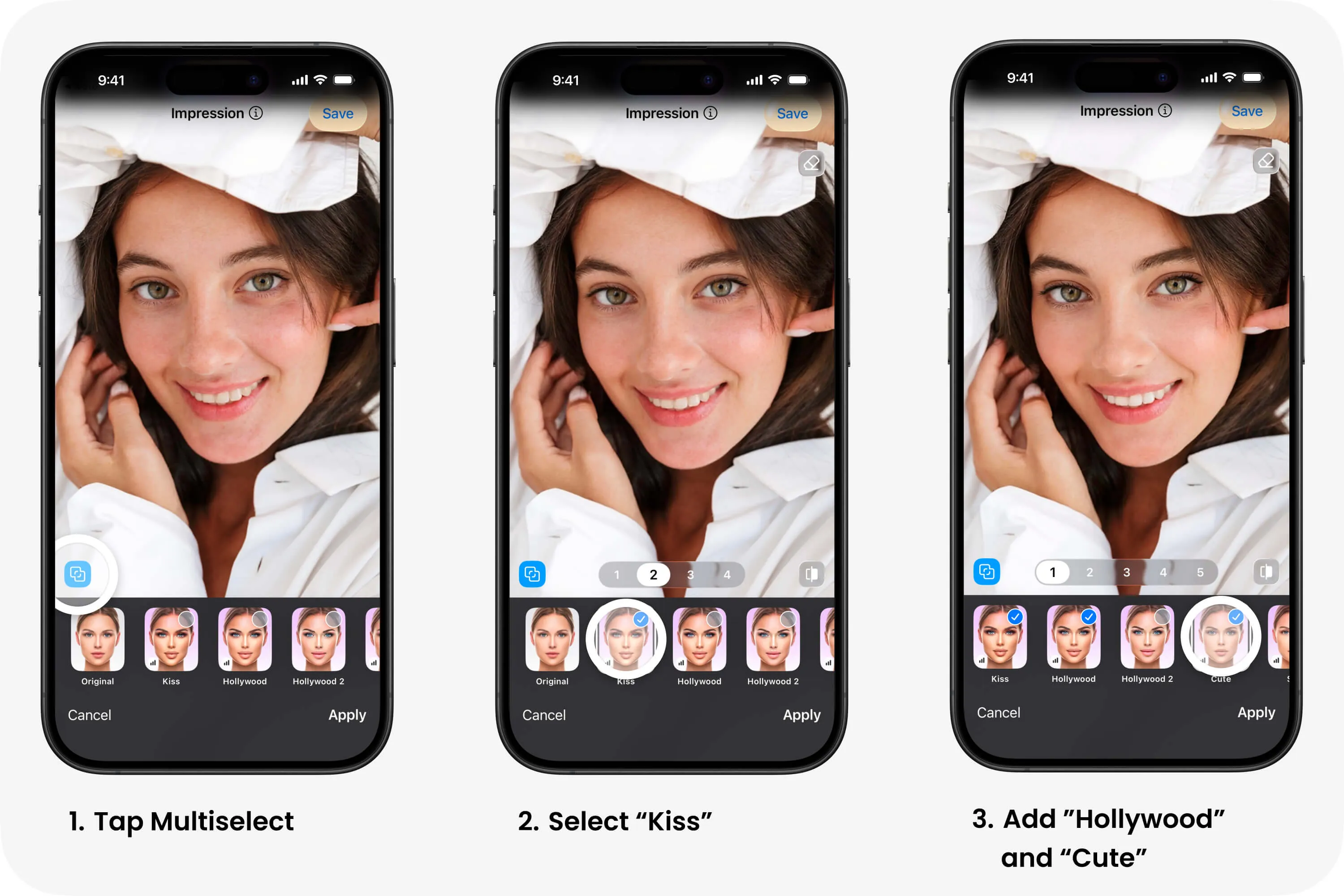
After switching to Multiselect mode, several filters from the current group can remain active at the same time. This makes it possible to build more detailed combinations instead of relying on one filter only.
How to use Multiselect
Open a photo in FaceApp and go to the filter group you want to use.
The Multiselect button is located in the bottom left corner, above the filter icons and previews. Tap it to switch the selection mode, then choose several filters from the same group.
Check the result after adding each filter and adjust the intensity where available.
How to keep the result natural
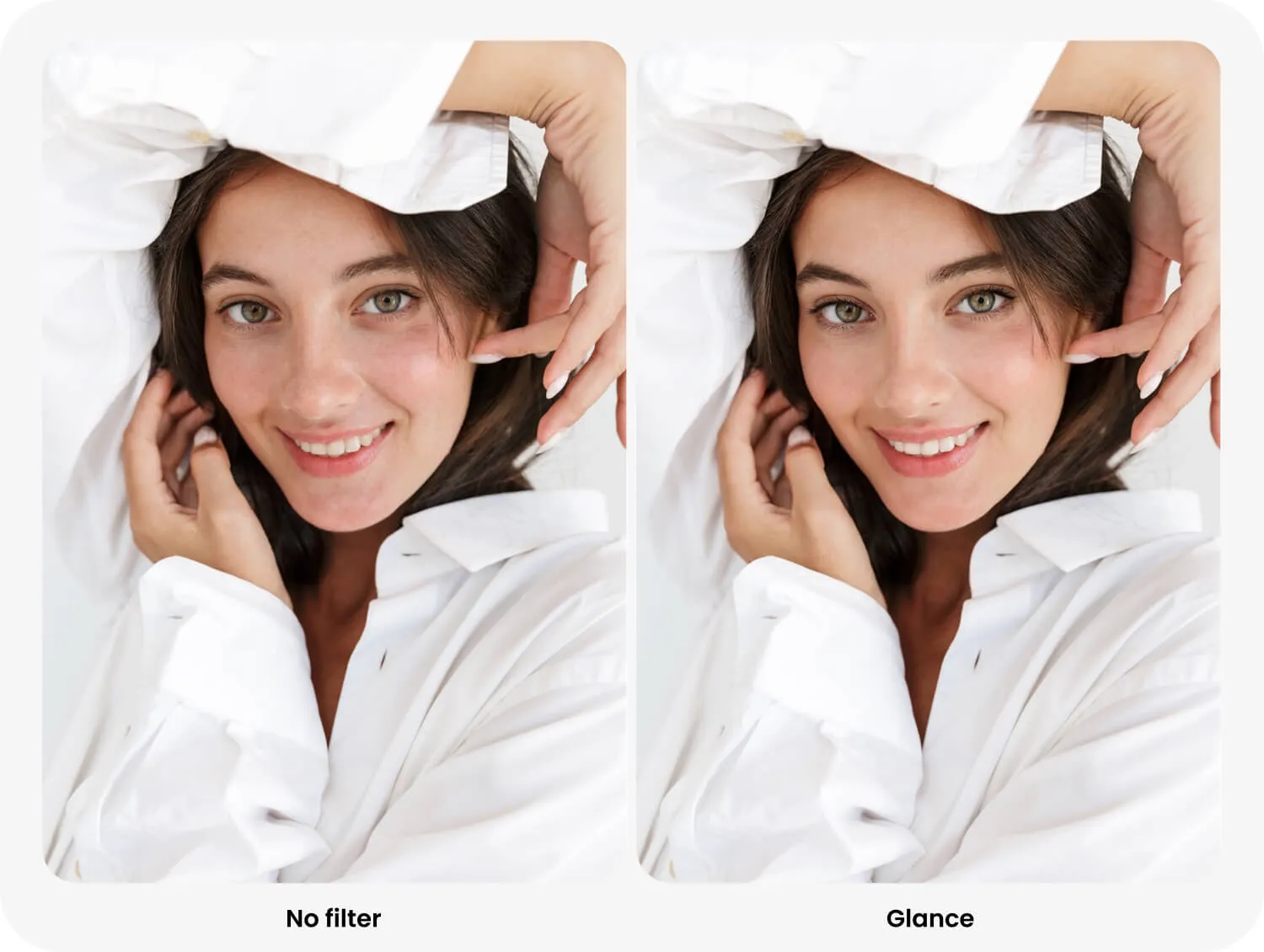
Multiselect works best when the selected filters are used at low intensity.
Several strong filters can make the edit look too noticeable, especially when they affect similar facial features. Start with subtle settings and add filters gradually.
A balanced combination should preserve the original face, skin texture, and lighting while making the photo look more polished.