' href='data:image/webp;base64,UklGRg4BAABXRUJQVlA4IAIBAAAwBgCdASogACAAPqlEnUmmI6MhMAwAwBUJYgCo+avSAgqonS+UZkPeieUDgeyYTqapRlekfotS2hSAAP7v1+8T+XkGnay8x+IxlkoY9zJjM0C2yjV4o/QBwSS1aT6ULYr290E4ry0mK1hl+HiuLC3G20bkvTUXa6ysnerXDSAy53xOw0C51j0UUV+jAuvI3Kb8b1GseVu6ZtrgsRMI4AvVzd8+zpfHmYBafyAPWQ07u+JVUHBVtzfPJ4vkKOlzUeHt/kxPWUgeAka/Opclk0itF6XfudvCfOQVj0hyeQnkXoVI1T/Ca6BARBO9FK7TC51WFygo58DThsbCGSVAs0zYAAA='/%3E%3C/svg%3E)
Reshape: The Edit Nobody Notices
Table of Contents
Every camera lies a little. A wide-angle lens compresses faces. A low angle shortens legs. A bad perspective flattens features that looked perfectly balanced in the mirror. The photo isn’t wrong — it’s just not accurate. And that’s exactly what the Reshape tool is built to fix.
The Tools Inside Reshape
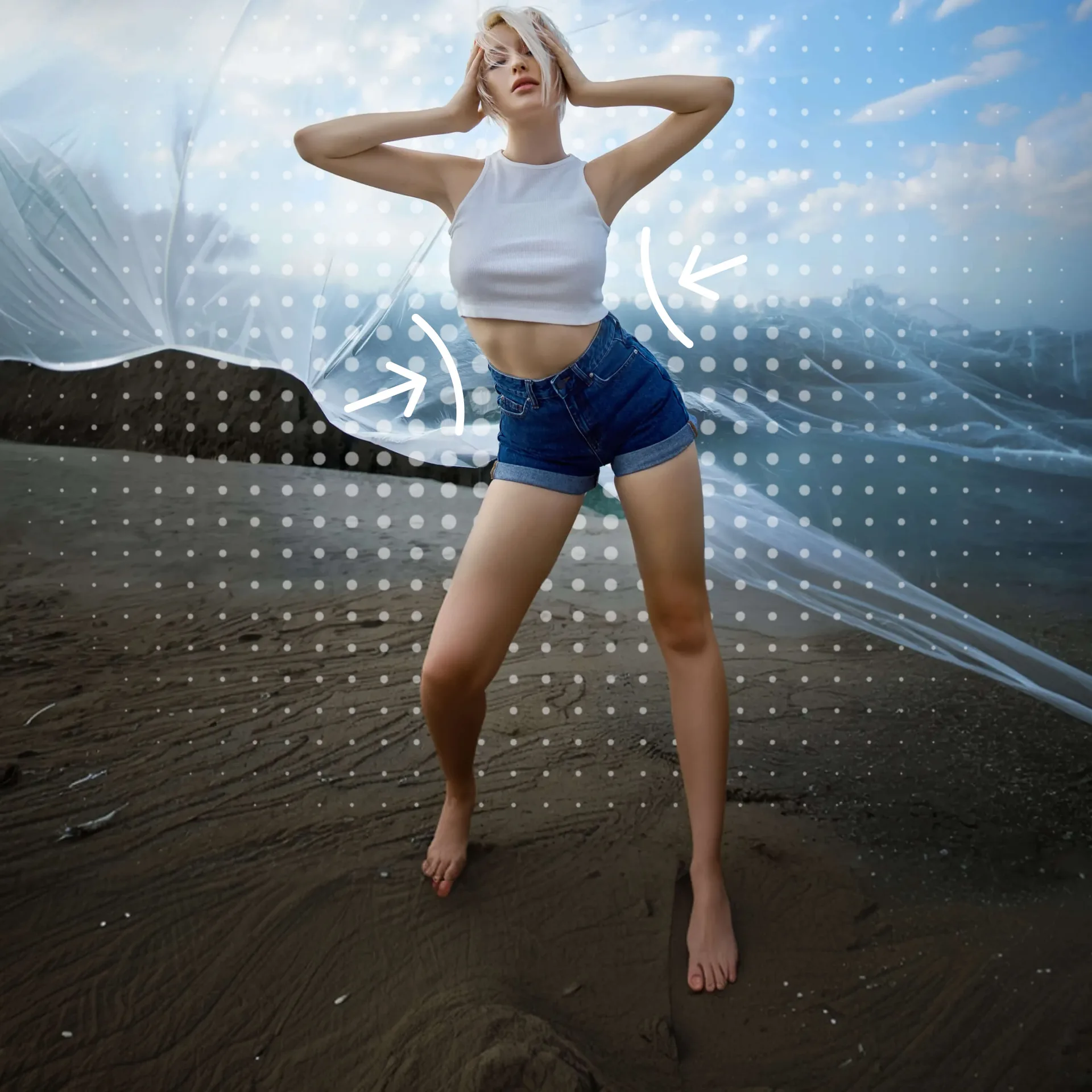
Reshape isn’t a single slider — it’s a set of precision instruments, each designed for a specific kind of correction:
- Reshape — targeted pushing and pulling of any area for custom adjustments
- Slim — reduces width for a more balanced silhouette
- Size — scales specific areas up or down, ideal for correcting lens distortion
- Width — adjusts horizontal proportions across the frame
- Tall — lengthens the body or legs for a more natural, upright proportion
- Enlarge — expands a specific area with control over intensity
- Recovery — brings any over-adjusted area back towards the original
Fixing What the Camera Got Wrong
A low-angle shot compresses the legs — Tall corrects that in seconds, restoring the proportions that were actually there. A selfie taken too close distorts the nose and chin — Size scales those areas back to something more accurate. A wide-angle group shot makes people near the edges look slightly stretched — Width and Reshape bring them back into balance.
None of these are transformations. They’re corrections. The goal is always the same: make the photo look like what you actually looked like, rather than what the lens decided.
No Background Distortion
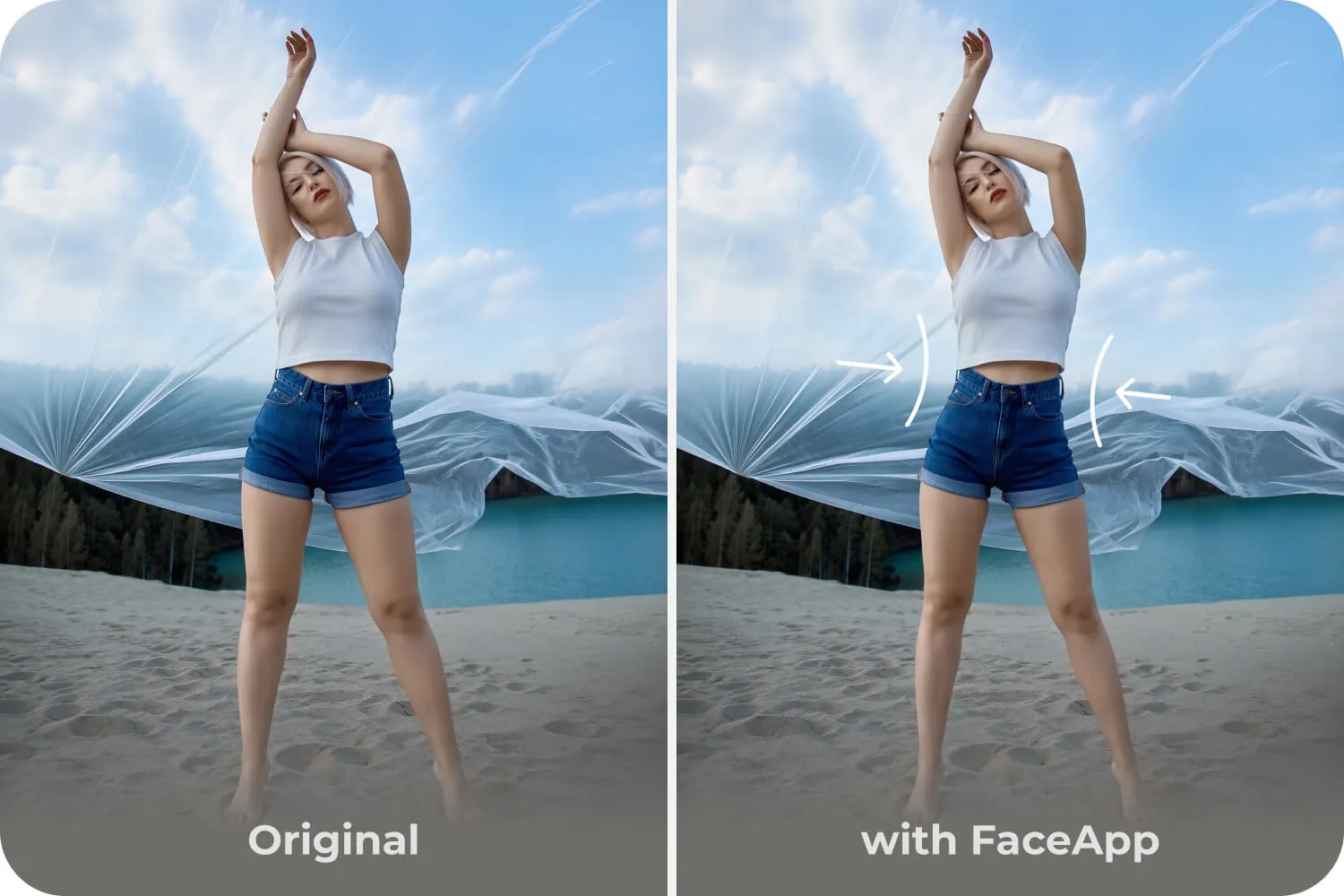
The biggest risk with any reshape edit is what happens to everything around it. Straight lines bend. Walls curve. Horizons shift. One small adjustment to a face or body can quietly warp the entire scene behind it.
Lock Background solves this completely. By locking the background in place before editing, only the selected area moves — the scene stays visually stable. A reshaping fix on the subject, with zero distortion in the architecture, horizon, or geometry behind it.
The edit stays invisible. Which is exactly how it should be.
The best reshape edit is the one nobody notices — including you, after a while.