' href='data:image/webp;base64,UklGRmABAABXRUJQVlA4IFQBAAAwBwCdASogACAAPrVInkmnJCKhMAgA4BaJbAC1GoPNLecK6ulQZxFZ+eJwIcjX05R0BuoANKDRJSiVtcGIll8EQmAA+Wa9z5U/GUEvalmMcuNJZ4IuANOMao65IWiXBqJ9aVnjXh7pgPaIpWwju2a4Nmcs0hX0mip/yZJjoYbnxbLPIWtI2w9TiMf6w7ZRW0hWk5xqpiyLQ/0w7RPmWOdAH80x3iTMC2yfJllObhJbTR5x5ftZyTTmPNbsqLa8Y5PaWZj7txk6Cts6K8HpNCzHYTkOj2QRZU7HEeC/eyHBKqLyJiTPy9M39uwlkGwYpaaeq5EkzQ230U69k2QoaEADGM4NNM5d2qpQqb1LyJ82MsYgC4/TP8lImZAQQtgoLyJcys4Oluhbu33fMhyU5ijU+qFBBoj17cuIS21sP/1tIxNoe4F2cnGujlo211LrQH1OAAAA'/%3E%3C/svg%3E)
Editing Group Photos Without Losing Anyone
Table of Contents
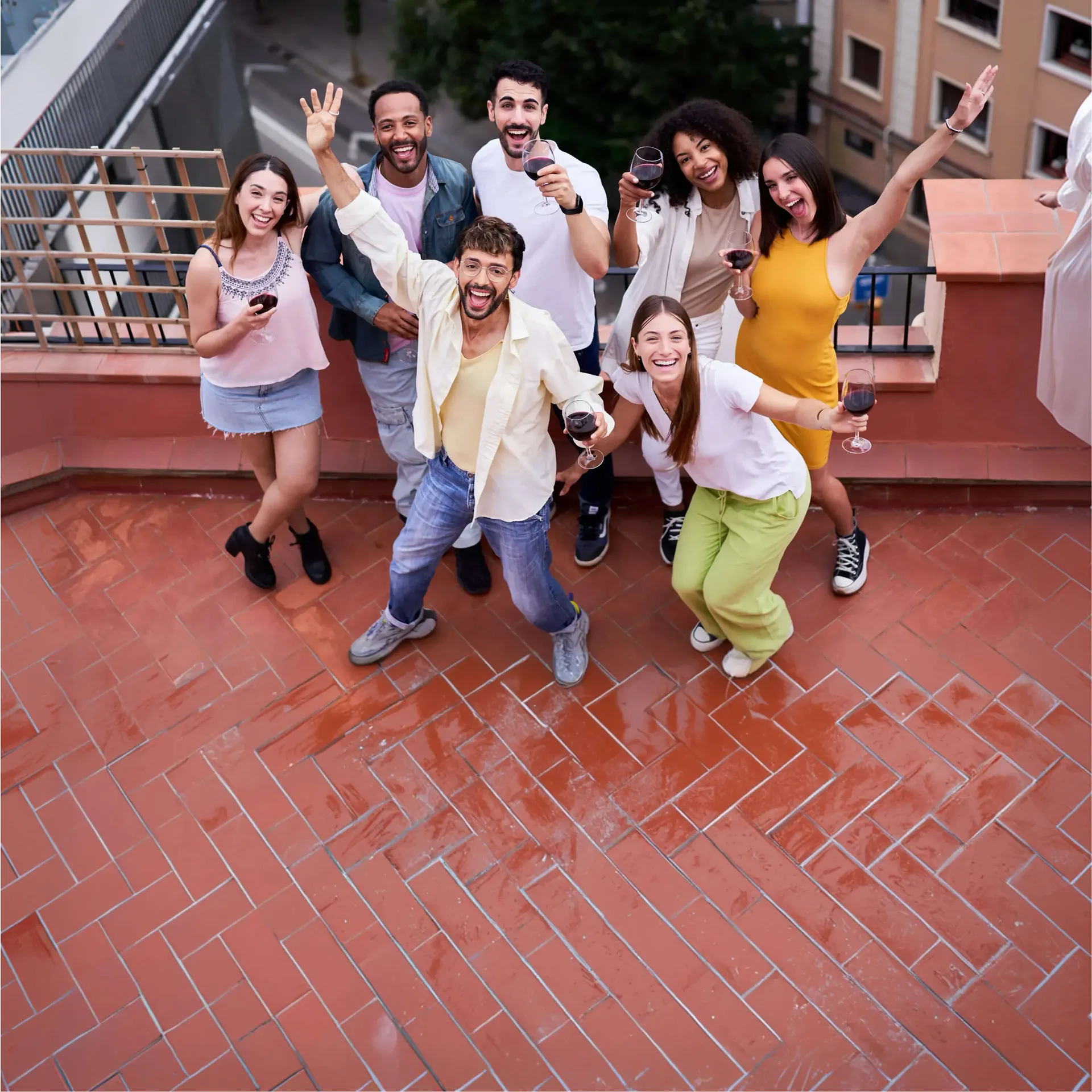
Group photos are full of small negotiations. Someone blinked. Someone looked away. One person loves the lighting, another hates their smile. The person closest to the camera looks perfect — everyone in the back disappeared into shadow.
And this is usually the exact moment when group photo editing goes wrong.
The Problem
Most editing apps are designed around a single face. One subject, one focal point. But real memories rarely work that way. Birthdays, vacations, late-night selfies with friends — the emotional point of the image is the group itself. Not just the person holding the phone.
The closer someone stands to the camera, the easier they are to edit. Everyone else becomes progressively harder: faces turn softer or darker, expressions become less readable, and one filter suddenly makes half the group look over-edited. One person ends up polished while everyone else looks strangely artificial.
What to Consider
A good group photo should feel democratic. Nobody wants to be the friend who edits themselves perfectly while leaving everyone else tired, shiny, or half-visible in the background.
There’s also an etiquette to group editing that matters more than people admit. Editing a group photo quietly affects everyone inside it. The principle is simple: enhance the photo without changing the people. Small corrections are usually welcome — better lighting, softer shadows, cleaner detail. But once edits become too aggressive, the photo stops feeling shared.
How FaceApp Solves It
FaceApp’s multi-face editing recognizes more than one person inside the frame. Instead of applying changes only to the most dominant face, adjustments work across several people more evenly — skin tones stay balanced, lighting corrections feel shared, and the image keeps its social energy instead of turning into a solo portrait with extras.
The best edits are usually the quietest ones: slight lighting correction across the frame, gentle skin refinement, balanced exposure, subtle clarity improvements. The goal is coherence, not perfection. People should look like they belong in the same reality.
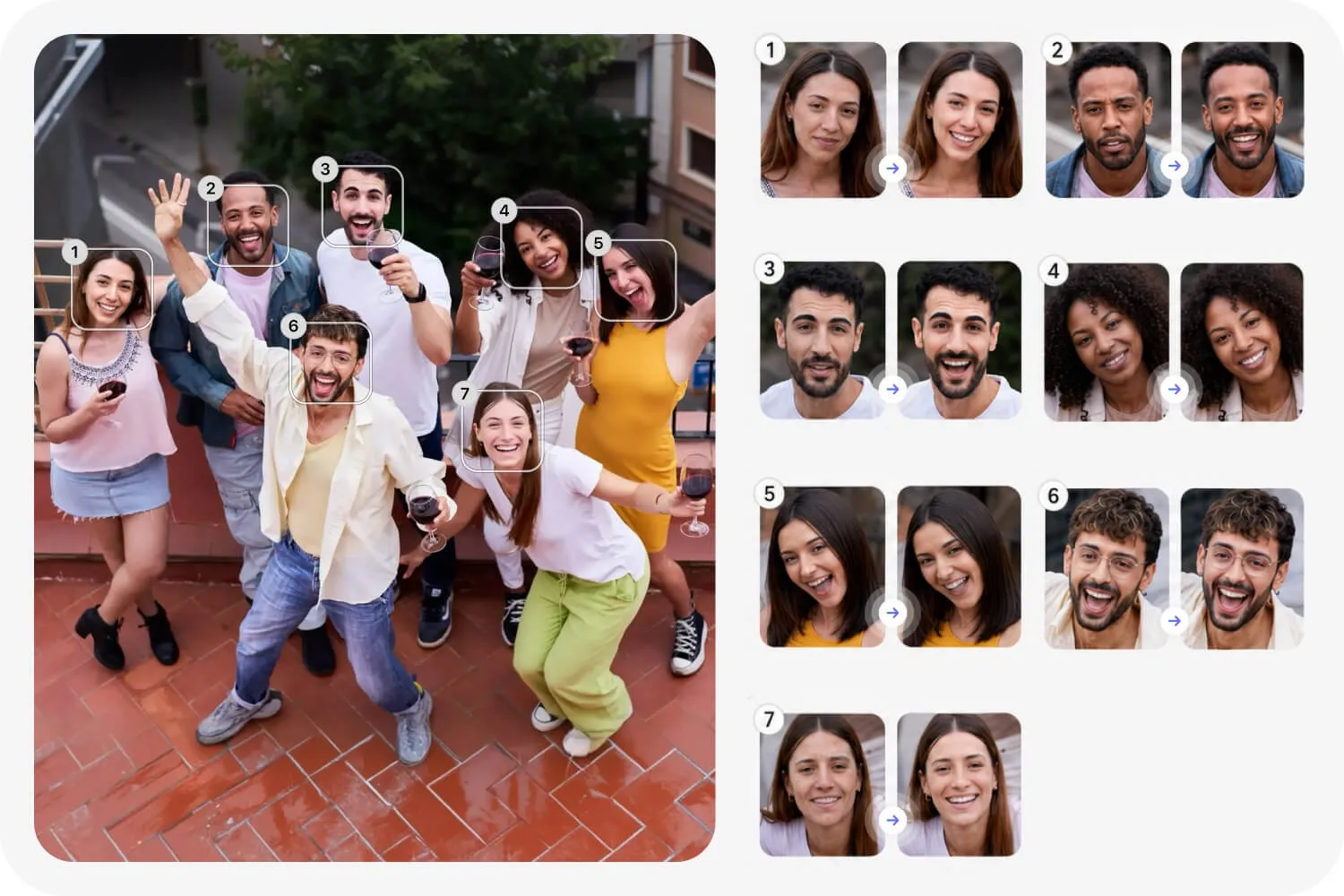
Selecting a Different Face
To shift focus to another person in the photo, simply tap their face directly on screen. FaceApp will recognize it as the active subject and apply your adjustments there instead.
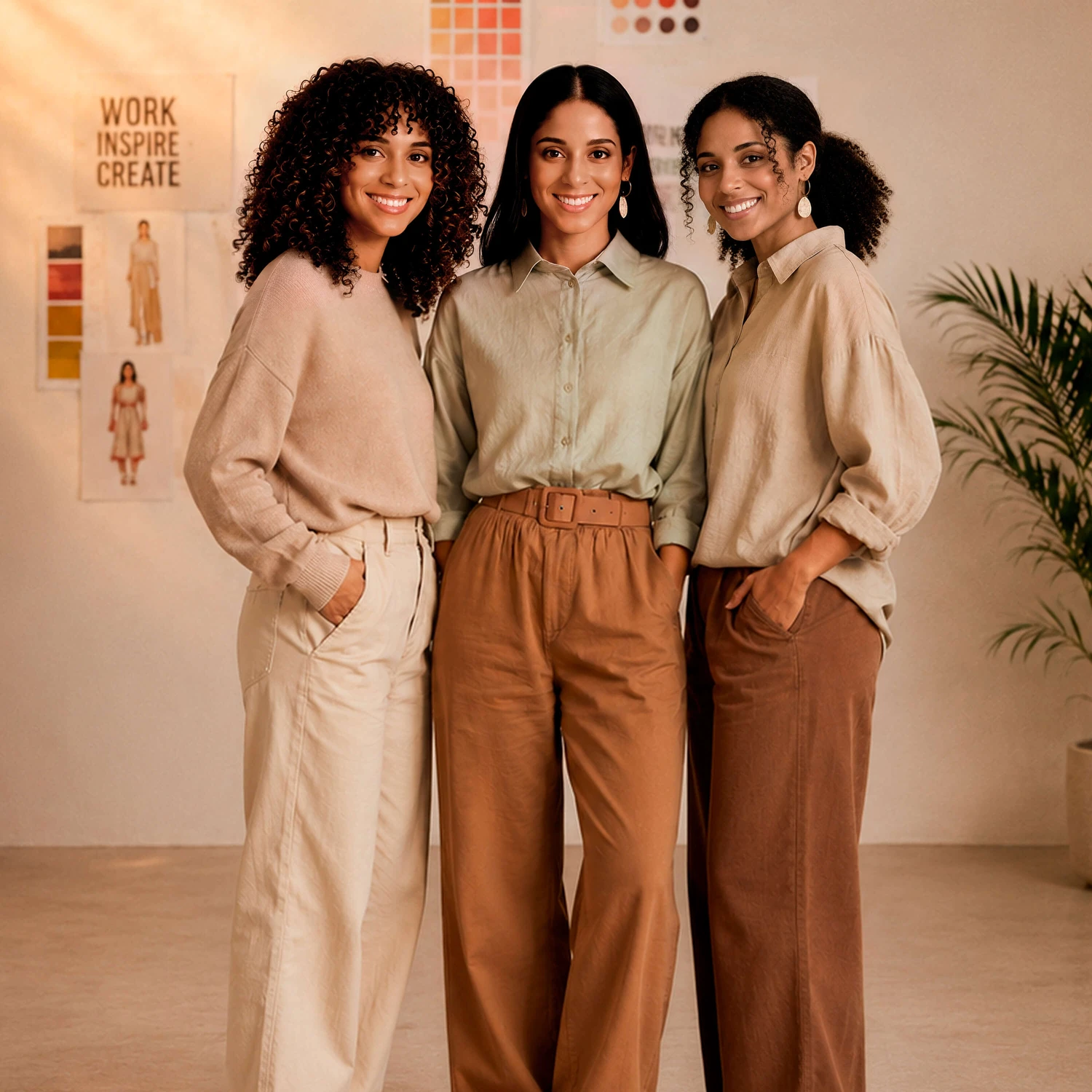
With the multiface button, you can edit every face in the group separately — switching from person to person, making individual adjustments for each one, and building up the final result face by face. One person might need a brightness correction, another a skin refinement, another a makeup touch-up. The multiface button lets you handle each without affecting anyone else.
This is what makes group editing feel intentional rather than accidental. Every person in the frame gets the same attention. Nobody gets left in the background.
The best group photos are never technically perfect. Someone is always mid-laugh, someone is blinking, someone looks slightly chaotic. Good editing preserves that energy — it doesn’t polish it out of existence. Because the best group photos aren’t really about faces. They’re about the relationships visible inside the frame.